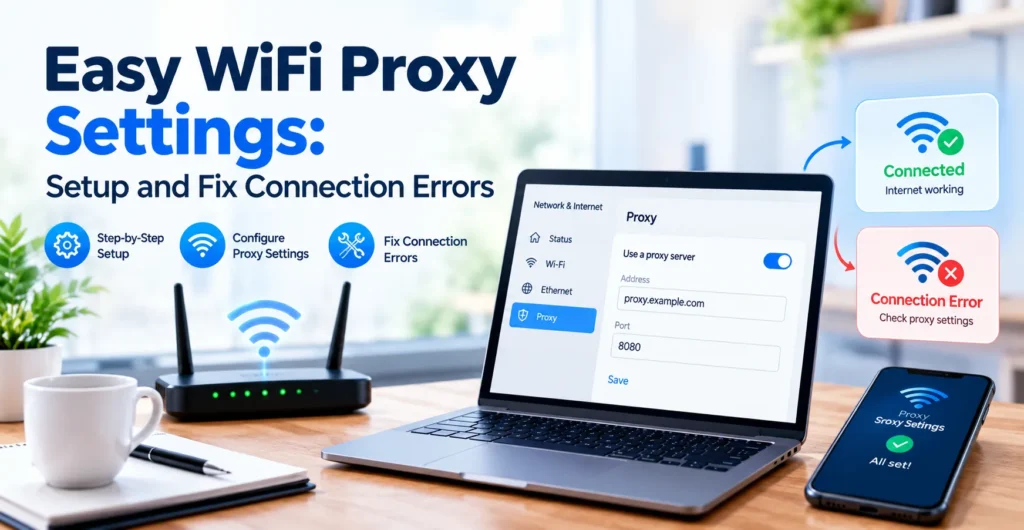
WiFi proxy settings control how supported internet requests travel through a proxy server before reaching their destination. You can configure these settings on Android, iPhone, Windows, and Mac to use a network proxy, follow workplace rules, or troubleshoot connection problems. The correct settings depend on your device and the proxy details provided by your network administrator or proxy service.
- What Are WiFi Proxy Settings?
- What Do Off, Manual, and Automatic Proxy Settings Mean?
- How to Configure WiFi Proxy Settings on Different Devices
- How to Check Whether Your WiFi Proxy Is Working
- Which Proxy Is Best for WiFi?
- How to Fix Common WiFi Proxy Connection Errors
- WiFi Proxy Settings: Frequently Asked Questions
What Are WiFi Proxy Settings?
WiFi proxy settings tell your device whether to send supported internet requests directly to websites or through an intermediary called a WiFi proxy server. The proxy receives a request and forwards it to the destination, which may see the proxy’s public IP address instead of your device’s original public IP address.
Proxy settings are different from WiFi connection settings. WiFi settings connect your device to a wireless network, while proxy settings control how certain internet traffic is routed after the connection is established.
There are several proxy types, each designed for different needs:
- HTTP proxy: Handles web traffic that uses the HTTP protocol.
- HTTPS proxy: Commonly supports secure HTTPS connections through a proxy tunnel. The HTTPS connection between your browser and the website provides encryption.
- SOCKS5 proxy: Supports different types of network traffic, depending on the application and configuration. Standard WiFi proxy menus do not always support it directly.
A proxy can help route supported traffic through another server, but it does not automatically encrypt all your internet activity or make you anonymous. A VPN generally creates an encrypted tunnel for traffic covered by its configuration, while a proxy’s coverage depends on the device, app, and proxy protocol.
What Do Off, Manual, and Automatic Proxy Settings Mean?
Most device proxy menus provide options for turning the proxy off, entering details manually, or using automatic configuration.
| Mode | What it does | When to use it |
|---|---|---|
| Off | Does not use the proxy configured in that setting | When no proxy is required |
| Manual | Uses a specified proxy server and port | When you have the correct server details |
| Automatic | Detects or loads proxy configuration automatically | When the network provides automatic configuration |
Manual proxy configuration requires details such as a hostname or IP address and a port number. For example, a network administrator might provide a server address and port for a company WiFi network. Do not copy random values from online tutorials because they may not work or could send your traffic through an untrusted server.
An automatic proxy configuration (PAC) uses a script to determine which requests should go through a proxy and which should connect directly. A Proxy Auto-Config URL is the address from which a compatible device retrieves that script. Use a URL supplied by a trusted organization.
Other fields may include:
- Proxy hostname or IP address: Identifies the proxy server.
- Port: Identifies the service endpoint on that server.
- Bypass list: Specifies addresses or domains that should connect without the proxy.
- Proxy authentication: Requires a username and password when the server uses login-based access. Some services instead authorize connections using an approved IP address.
How to Configure WiFi Proxy Settings on Different Devices
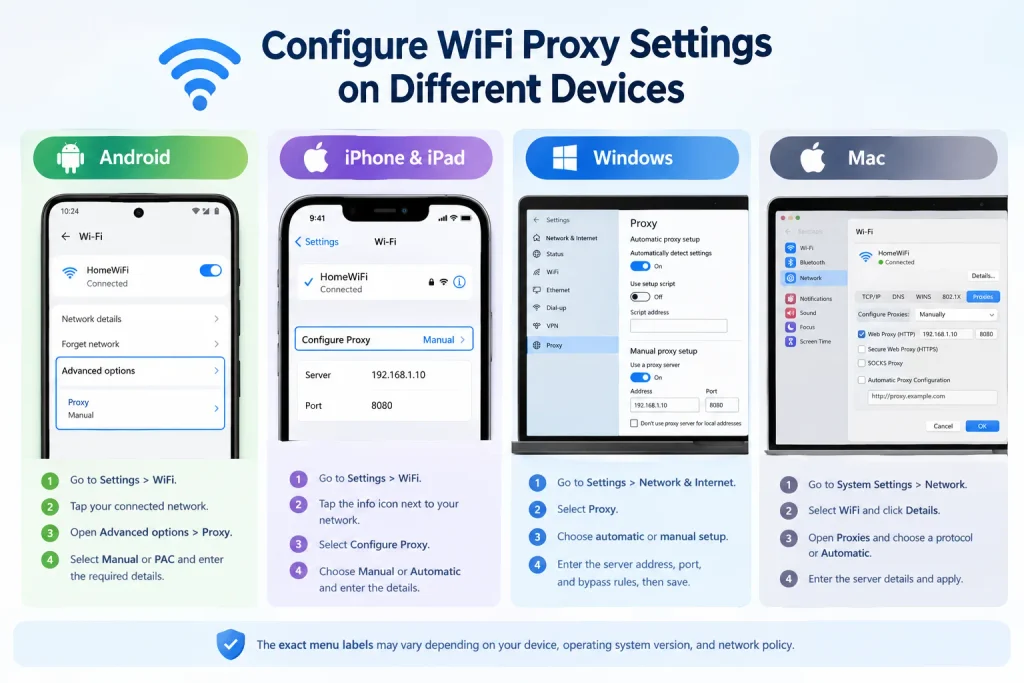
Before changing any settings, connect to the correct WiFi network and obtain the proxy details from a trusted source. Menu names can vary by device, operating-system version, and network policy.
Android WiFi Proxy Settings
- Open Settings and select WiFi or Network & Internet.
- Tap the connected WiFi network or its settings icon.
- Open the network’s advanced options and find Proxy.
- Select Manual or Proxy Auto-Config, depending on the available options.
- For manual setup, enter the proxy hostname and port. Add bypass addresses or authentication details if your device and service support them.
- Save the settings and test your internet connection.
On some Android phones, you must tap and hold the network name to access its options. If the proxy field is missing, check the device manufacturer’s instructions or ask your network administrator.
iPhone and iPad WiFi Proxy Settings
- Open Settings and tap WiFi.
- Tap the information icon next to the connected network.
- Scroll down to Configure Proxy.
- Choose Off, Manual, or Automatic.
- For Manual, enter the server and port. For Automatic, enter the Proxy Auto-Config URL provided by your network administrator.
- Save the settings and open a website to test the connection.
If the connection stops working after configuration, check the server address and port before changing other network settings.
Windows 10 and Windows 11 Proxy Settings
- Open Settings and select Network & Internet.
- Select Proxy.
- Under automatic proxy setup, review Automatically detect settings or use a setup script if your organization provides one.
- Under manual proxy setup, enable the proxy server option.
- Enter the address and port, configure any available exceptions, and save your changes.
Windows menus can differ slightly by version. For Microsoft’s official instructions, see the Windows proxy settings guide.
Mac WiFi Proxy Settings
- Open System Settings and select Network.
- Select WiFi, then open Details for the connected network.
- Choose Proxies.
- Select the supported proxy protocol or automatic proxy configuration option.
- Enter the required server details or configuration URL.
- Apply the changes and test the connection.
Older macOS versions may use different menu labels, such as System Preferences instead of System Settings.
Remember that WiFi proxy settings do not automatically configure mobile data. A proxy set for a WiFi network may stop applying when you switch to cellular data, and individual apps may use their own proxy settings.
How to Check Whether Your WiFi Proxy Is Working
After saving your settings, verify that the proxy is reachable and handling the traffic you expect.
- Check your public IP address using a reputable IP-checking website before enabling the proxy.
- Enable the proxy and check the public IP again.
- Open a few websites and look for connection errors or authentication prompts.
- If your IP does not change, confirm that the proxy is enabled and that the browser or app uses it.
For example, if your public IP changes after connecting to a company proxy, that suggests your test request may be passing through the proxy. It does not prove that every app uses the proxy or that all your traffic is encrypted.
Which Proxy Is Best for WiFi?
The best proxy depends on what you need to do, which protocols your device supports, and whether you trust the provider.
| Option | Best suited for | Important limitation |
|---|---|---|
| HTTP proxy | Compatible web traffic | Does not itself provide encryption |
| HTTPS proxy | Web browsing through a proxy with secure HTTPS connections | Security depends on correct TLS use and trusted configuration |
| SOCKS5 proxy | Applications that support broader network traffic routing | May require app-specific configuration |
| VPN | Protecting supported traffic across a device or network | Requires a trusted VPN provider and correct setup |
Avoid unknown free proxy servers when accessing email, banking, or other sensitive accounts. An untrusted proxy may observe some traffic or manipulate unencrypted connections. Even a reputable proxy does not prevent all forms of online tracking.
How to Fix Common WiFi Proxy Connection Errors
If your WiFi connects but websites do not load, the proxy settings may be incorrect or the server may be unavailable. Try these checks in order:
- Verify the hostname and port. Check every character against the details supplied by your provider.
- Check authentication. Confirm your username and password, or ask whether your IP address needs to be approved.
- Check server availability. A proxy server may be offline, overloaded, or blocked by the network.
- Review the configuration mode. Make sure you selected Manual or Automatic as instructed.
- Check bypass rules and network restrictions. Incorrect exceptions or firewall rules can affect access to certain websites.
- Restart the connection. Disconnect and reconnect to WiFi after correcting the settings.
The error ERR_TUNNEL_CONNECTION_FAILED often means a browser could not establish a tunnel through the configured proxy. Check the proxy address, port, authentication, and server status first.
If you do not need a proxy, disable it in the relevant settings menu and test the connection again. On a managed work or school device, ask the administrator before removing required settings. If a proxy appeared unexpectedly, check for unfamiliar browser extensions, apps, or device-management profiles and investigate before entering sensitive information.
WiFi Proxy Settings: Frequently Asked Questions
What is the proxy setting in Wi-Fi?
The proxy setting controls whether supported internet requests pass through a proxy server before reaching their destination. It can be configured manually or automatically, depending on your device and network requirements.
Should my Wi-Fi proxy be on or off?
Keep your proxy off if your network does not require one. Turn it on when you have valid settings from a trusted provider, workplace, school, or network administrator.
Which proxy is best for Wi-Fi?
The best option depends on your needs. HTTP proxies support compatible web traffic, HTTPS connections provide encryption between your browser and the website, and SOCKS5 supports broader traffic types when an application is configured to use it.
Where do I find my Internet proxy settings?
On Android and iPhone, open WiFi settings and select your connected network. On Windows, go to Settings → Network & Internet → Proxy. On Mac, open System Settings → Network → WiFi → Details → Proxies.
Should I turn off my proxy?
Turn off your proxy if you no longer need it or if incorrect settings are preventing internet access. However, check with your network administrator first if your workplace or school requires a proxy to access its services.