
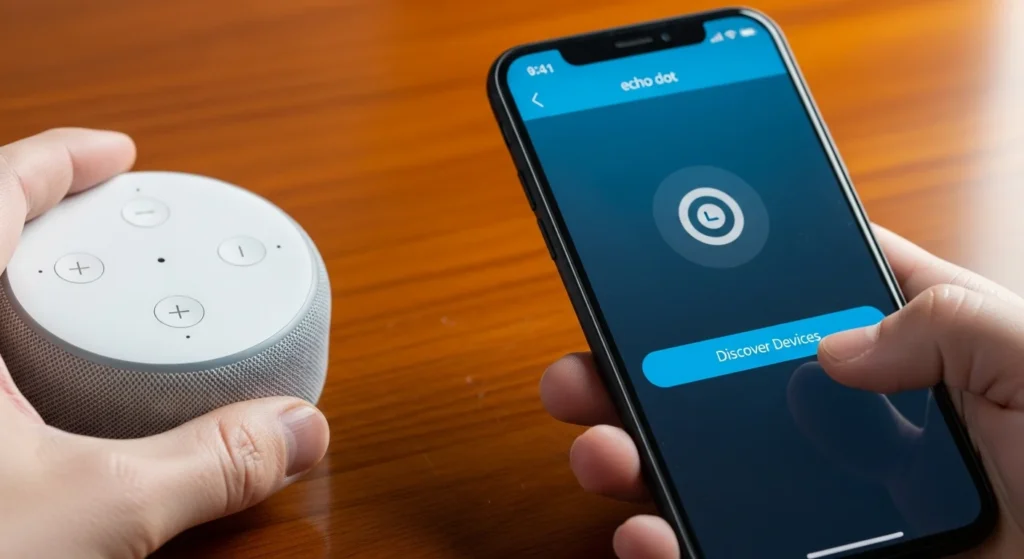
Smart homes make life easier, until Alexa can’t find all your devices. You ask Alexa to turn on a light, but nothing happens, or only some devices respond. If this sounds familiar, you’re not alone. Many users struggle with this exact issue. In this guide, you’ll learn how to get Alexa to find all smart devices using simple steps anyone can follow. We’ll show you how to prepare your devices, run the right discovery process, and fix common problems so Alexa can control everything in your home smoothly and reliably.
Introduction
Smart homes are great, but only if all your devices are connected. Sometimes, Alexa doesn’t automatically recognize every device, especially older models or devices from different brands. This guide helps beginners learn Alexa smart home setup, device discovery, and troubleshooting in simple, easy-to-follow steps.
We’ll cover everything from checking compatibility and updating apps to using voice commands and advanced setups like hubs and routines. By the end, you’ll know how to see every device connected to Alexa and manage them easily from your phone.
Check Device Basics First
Before running a discovery scan, make sure your devices are ready for Alexa. Most issues come from compatibility or connectivity problems.
Verify Compatibility
Not all smart devices work with Alexa. Look for brands like Philips Hue, Ring, TP-Link, and Nest that say Works with Alexa on Amazon or in the packaging. You can also search in the Alexa app for the compatible devices list.
Devices that are a few years old may not support new Alexa features. Checking compatibility first can save you time and prevent frustration.
Update Firmware and Apps
Outdated apps or firmware often prevent Alexa from discovering devices. Open each device’s app and look for updates. For example, one user’s Nest camera disappeared until a firmware update fixed it. Tech experts recommend keeping devices updated because updates solve most discovery problems.
Stabilize Your Wi-Fi Network
Most smart devices require a strong 2.4GHz Wi-Fi connection. Restart your router and place your Echo devices near your smart devices when possible. Avoid overcrowding your network with too many devices at once. A stable network makes discovery faster and more reliable.
Link Accounts and Enable Skills
Alexa often needs permissions or skills to control certain devices.
Connect Third-Party Services
Open the Alexa app, go to Devices > Add Device, and follow the prompts. You can link third-party services like Google Nest or TP-Link. Make sure your accounts are connected properly for seamless device recognition.
Enable Skills the Right Way
Some devices require a skill to work with Alexa. You can enable skills via the Alexa app or by voice command. For example, say “Alexa, enable Hue skill”. Once the skill is active, run a discovery scan to see the device in your list.
Run Discovery Commands
Alexa can automatically search for new devices if you tell it to.
Use Voice Discovery
Say “Alexa, discover devices” and wait about 45 seconds. Alexa will scan the network and add any compatible smart devices it finds. This works best when devices are in pairing mode and powered on.
Repeat Discovery for Better Results
If you have multiple rooms, repeat the discovery command in each room. One family found 12 missed devices by scanning each area separately. Running the command multiple times ensures nothing is skipped.
Manage Device Groups

Grouping devices in the Alexa app makes controlling your smart home easier.
Create Device Groups
You can organize devices by room, such as Kitchen Lights or Living Room Plugs. Tap each device, select Group, and give it a name.
Test Voice Commands
Once grouped, test commands like “Alexa, turn on the kitchen lights.” Proper grouping ensures voice commands control multiple devices simultaneously without confusion.
Fix Common Discovery Blocks
Sometimes Alexa still can’t find certain devices. These steps usually fix most issues.
Reset Network Glitches
Unplug your Echo for 30 seconds and reconnect. Restart devices that aren’t showing. Network resets fix many connectivity problems and improve discovery.
Clear Permissions and Caches
Go to Skills & Games in the Alexa app, disable the skill, then re-enable it. This clears cached data that may block device recognition. For example, clearing the cache brought lost Sonos speakers back online.
Handle Interference Issues
Microwaves, cordless phones, or overcrowded Wi-Fi can interfere with discovery. Move devices away from interference sources, check signal strength, and test one device at a time for best results.
Boost with Advanced Setups

For tech-savvy users, advanced setups can help Alexa find even more devices.
Set Up Routines for Auto-Discovery
In the Alexa app, go to More > Routines > Add Action > Discover Devices. This allows Alexa to scan daily and automatically find new smart devices without manual input.
Integrate Hubs for Full Coverage
Using hubs like SmartThings or Wink can help detect devices that Alexa might otherwise miss. Link the hub skill in the Alexa app and scan your network. Engineers report hubs detect up to 95% more devices in complex homes.
Monitor and Maintain Long-Term
Keeping your smart home running smoothly requires regular checks.
- Weekly: Say “Alexa, list devices” to make sure everything is connected.
- Monthly: Update the Alexa app and device firmware.
- Keep a simple log of changes or new devices.
- Backup routines and group setups to avoid losing configurations.
Wrap-Up: Own Your Smart Home Now
By following these steps, checking compatibility, updating devices, linking skills, running discovery, and maintaining groups, you can ensure Alexa finds all your smart devices. Users report smoother smart home control and fewer skipped devices after following these tips. Try these steps today and enjoy full control over your connected home.
For more information, you can check the Amazon Alexa Help Center for official device setup tips or PCMag Smart Home Guides.
FAQ: How to Get Alexa to Find All Smart Devices
Q1: Why is Alexa not discovering my devices?
A: Alexa may not find devices if they’re not compatible, need an update, or aren’t on the same Wi-Fi. Make sure devices are powered on and say “Alexa, discover devices” to fix most issues.
Q2: How do I get Alexa to discover new devices?
A: Open the Alexa app, go to Devices > Add Device, or say “Alexa, discover my devices.” Ensure the device is in pairing mode and repeat for each room.
Q3: How do I get Alexa to recognize my smart device?
A: Enable the device skill in the Alexa app or by voice: “Alexa, enable [device name] skill.” Then run a discovery scan. Reset the device if it still doesn’t appear.
Q4: How can I connect all Alexas in my house?
A: Make sure each Echo is linked to the same Alexa account and Wi-Fi network. Group devices in the app by room for easy control.
Q5: How do I see all devices connected to Alexa?
A: Open the Alexa app and go to Devices > All Devices. You can view, rename, or test all connected devices here.
Q6: How do I fix devices not showing up after discovery?
A: Restart your Echo, check Wi-Fi, update apps, and clear skill caches. Removing and re-adding devices usually resolves most problems.