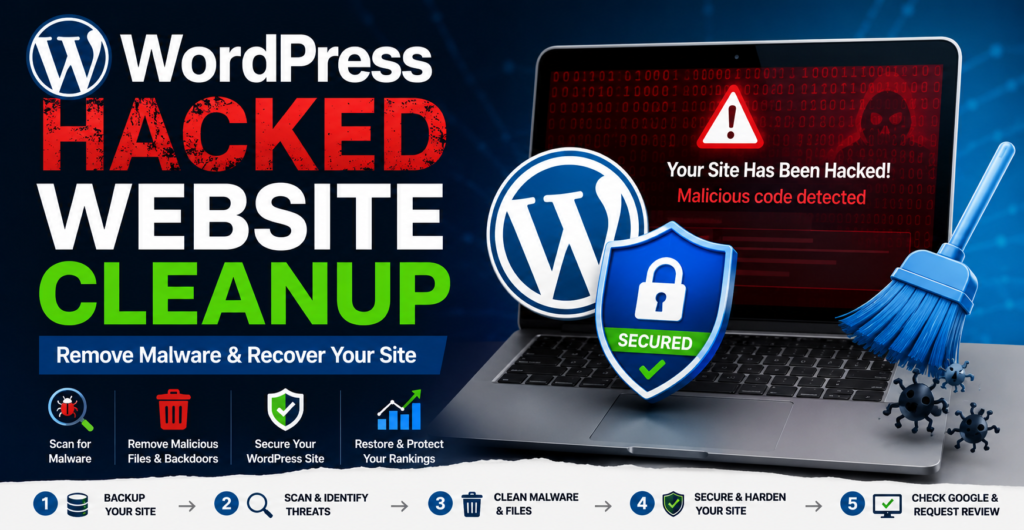
If your WordPress website suddenly redirects visitors, shows spam, displays strange pages, or has unfamiliar files, it may have been hacked. The difficult part is that malware can hide where you cannot easily see it.
You do not need to be a server expert to start a WordPress hacked website cleanup. For most beginners, the safest approach is to back up the site, use a trusted security scanner, clean the detected malware, scan again, and then secure the website.
- How to Tell If Your WordPress Website Has Been Hacked
- What to Do Before Cleaning a Hacked WordPress Site
- Find Malware and Backdoors in WordPress
- How to Clean a Hacked WordPress Website
- Secure WordPress After Malware Removal
- Fix Google Search Results After a WordPress Hack
- What to Do If Your WordPress Site Gets Hacked Again
- Frequently Asked Questions
How to Tell If Your WordPress Website Has Been Hacked
A hacked WordPress website can show obvious signs, but some infections remain hidden.
Look for:
- Unexpected redirects or pop-ups
- Spam pages appearing in Google
- Your homepage being replaced or changed
- Unknown WordPress administrator accounts
- Strange PHP files
- Unexpected changes to website files
- Hosting or browser security warnings
- Sudden changes in SEO traffic
- Visitors seeing different content than you see
A WordPress redirect hack is a common example. Your website may look normal when you visit it, while visitors from Google are redirected to another website.
However, do not assume every WordPress error means malware. A broken plugin, theme conflict, caching problem, or server issue can create similar symptoms.
If you see several warning signs together, treat the website as potentially compromised and start a security scan.
What to Do Before Cleaning a Hacked WordPress Site
Before deleting anything, protect your current website.
Step 1: Create a full backup
Back up both your WordPress files and database. Your hosting provider may offer automatic backups, or you can use a trusted WordPress backup plugin.
Do not skip this step. If something goes wrong during cleanup, the backup gives you a way to recover.
Step 2: Avoid random file deletion
Do not open your hosting File Manager and start deleting files simply because their names look strange. WordPress contains many PHP files that beginners may not recognize.
Step 3: Record the problem
Write down suspicious URLs, redirects, unknown users, security warnings, and other changes you noticed. This information can help during cleanup.
Step 4: Contact your hosting provider if necessary
If your host has suspended the website or reports malware at the server level, contact support before making major changes.
Step 5: Change passwords carefully
If you believe someone has access to your website, change important passwords from a clean computer. This includes your WordPress, hosting, SFTP or FTP, and other related accounts.
After the malware and backdoors have been removed, change them again if needed and regenerate your WordPress security keys and salts.
Find Malware and Backdoors in WordPress
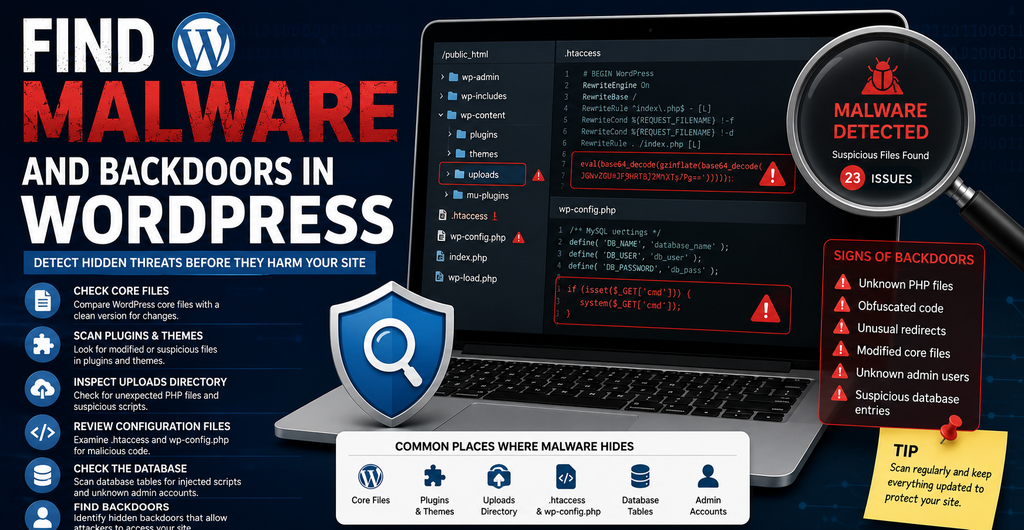
This is where many beginners get stuck. You may hear advice such as “check .htaccess” or “inspect the database,” but that does not help much if you do not know what you are looking for.
The easiest starting point is a reputable WordPress malware scanner.
Option 1: Use MalCare for an easier cleanup
MalCare WordPress Security is a beginner-friendly option for scanning and cleaning a hacked WordPress website. Its current process is designed around installing the plugin, running a deep scan, reviewing the results, and using its cleanup feature when malware is detected.
Step-by-step:
- Install the MalCare plugin on your WordPress website.
- Connect your website to your MalCare account.
- Allow the site to sync.
- Start a deep security scan.
- Review the scan results.
- If malware is detected, use the cleanup option provided by MalCare.
- Run another scan after cleaning.
MalCare says its scan can look beyond obvious files and its cleanup process is designed to remove malware and backdoors without requiring manual editing of every infected file. Its free tier can be used for scanning, while automatic cleanup is a paid feature.
Important: Do not install several security plugins just because you are worried about the hack. Choose one primary security solution for the cleanup process.
Option 2: Use Wordfence to scan your site
Wordfence Security is another widely used WordPress security solution. It can help identify malware, modified files, vulnerabilities, and other security problems.
For a beginner, the general process is:
- Install Wordfence from the WordPress plugin area.
- Open the Wordfence dashboard.
- Start a full malware/security scan.
- Review the detected files and issues.
- Use Wordfence’s available repair or removal options where appropriate.
- Do not delete a file when you are unsure what it does.
- Run another scan after making changes.
Wordfence is particularly useful when you want more visibility into modified files and WordPress security issues. For complicated infections, however, a scan result may still require expert review.
What if you prefer professional cleanup?
Sucuri Website Security also provides malware removal and website security services. Its official cleanup guide explains that manual malware removal may require SFTP, FTP, SSH, database access, and knowledge of PHP and WordPress files. Sucuri specifically advises users who are not comfortable manipulating these areas to seek professional help.
This is important: if you do not understand .htaccess, PHP files, SQL/database tables, or server access, do not start editing them blindly.
How to Clean a Hacked WordPress Website
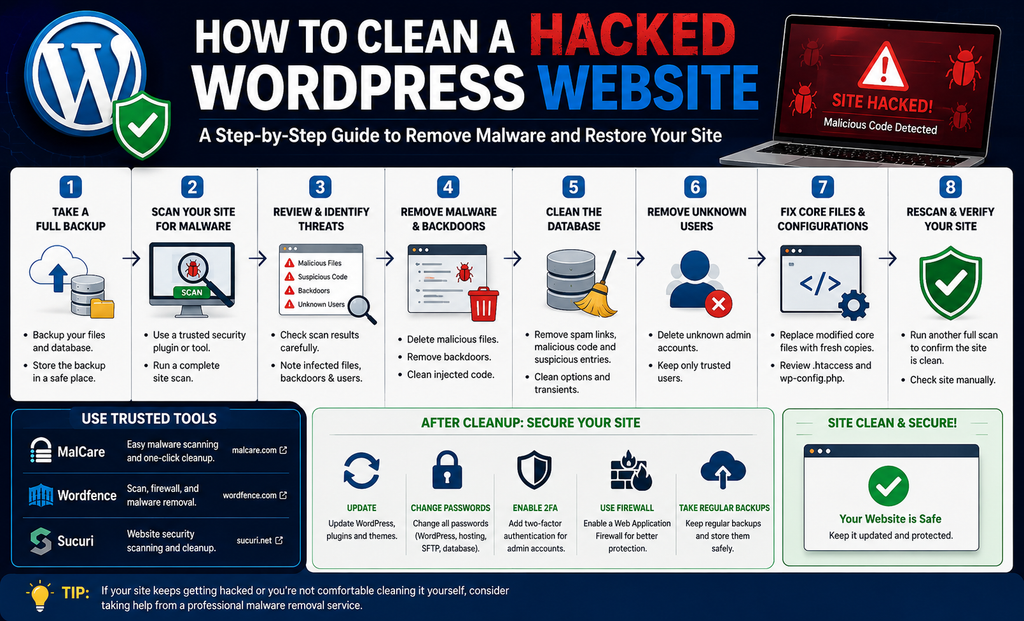
Once your scanner confirms an infection, clean the website in a controlled order.
Step 1: Clean the malware
If you are using a tool with an automatic cleanup feature, follow its cleanup process rather than manually deleting random files.
For example, MalCare’s current workflow is essentially:
Install → Sync → Scan → Review → Clean → Rescan.
Step 2: Replace infected WordPress core files
If the scan identifies modified WordPress core files, replace them with clean files from the official WordPress release that matches your installation.
Do not overwrite wp-config.php or your entire wp-content folder without understanding what you are doing. Sucuri’s manual cleanup guidance also recommends using a clean WordPress copy when core files are compromised.
Step 3: Reinstall compromised plugins and themes
If a plugin or theme has been infected, the safer option is usually to remove it and install a fresh copy from a trusted source.
Do not use nulled or pirated plugins and themes. They can contain malicious code or backdoors.
Step 4: Check the uploads directory
Look at wp-content/uploads. This folder normally contains images, documents, and other media.
If you find unexpected PHP files or other suspicious files there, investigate them before removing them.
Step 5: Check administrator accounts
Go to WordPress users and look for accounts you do not recognize.
Remove unknown administrator accounts immediately after confirming they are not legitimate.
An attacker may create an administrator account so they can return even after the visible malware is removed.
Step 6: Check the database
Malware can also be stored in database tables. This is an advanced area, so beginners should avoid changing database content without a backup and proper guidance.
Suspicious content may appear in tables such as wp_options or wp_users.
If you do not understand database queries, ask your hosting provider or a security professional to handle this part.
Step 7: Review .htaccess and wp-config.php
These files can be abused to create redirects or load malicious code.
But again, do not delete code simply because it looks unfamiliar. If you are unsure, have your hosting provider or security professional compare the file against a clean version.
Step 8: Run another security scan
This step is critical.
After cleaning, scan the entire website again. The goal is to confirm that malware, backdoors, suspicious files, and unauthorized accounts are no longer present.
Secure WordPress After Malware Removal
A clean website can become infected again if the original security weakness remains.
Start by updating WordPress, plugins, and themes. Remove anything that is unused, abandoned, or no longer supported.
Then:
- Change WordPress and hosting passwords
- Change SFTP or FTP credentials
- Regenerate WordPress security keys and salts
- Enable two-factor authentication for administrators
- Remove unnecessary administrator accounts
- Use a reputable WordPress security plugin
- Enable a Web Application Firewall
- Keep regular backups
- Store at least one backup away from the same hosting account
This process is called WordPress hardening.
A firewall can help block malicious requests before they reach your website. Sucuri also recommends using a Web Application Firewall and keeping WordPress updated as part of post-cleanup security.
Do not stop after the malware disappears. The goal is to prevent WordPress reinfection.
Fix Google Search Results After a WordPress Hack
A website can be clean while Google still shows the damage caused by the hack.
Open Google Search Console and check the Security Issues report.
Then search Google for:
site:yourdomain.com
Look for spam pages, strange URLs, or content you did not publish.
If you find malicious URLs, make sure the underlying website infection has been removed first. Check your XML sitemap and remove any hacked URLs that should not be there.
Also check who has access to Google Search Console. If an attacker added an unauthorized user, remove that access.
If Google has displayed a malware or hacked-site warning, complete the cleanup and then request a review through Search Console. Google’s official guidance explains how site owners can respond to security issues and request a review after fixing them.
Do not expect SEO recovery to happen instantly. Google may need time to recrawl the site and process the changes.
What to Do If Your WordPress Site Gets Hacked Again
If the same infection returns after cleanup, something may have been missed.
Check for:
- Hidden backdoors
- Unknown administrator accounts
- Vulnerable plugins or themes
- Suspicious PHP files
- Scheduled tasks such as
wp_cron - Compromised hosting or SFTP credentials
- Other infected websites on the same hosting account
- Old backups containing malware
Repeated reinfection is a strong reason to stop doing random file deletions.
If you cannot identify the entry point, get professional malware cleanup instead of repeatedly cleaning the visible symptoms.
In severe cases, rebuilding the website from clean WordPress files and a known-clean database may be safer than trying to repair every infected file individually.
Frequently Asked Questions
How do I recover a hacked WordPress website?
Start by backing up your files and database. Then scan the website with a reputable security tool such as MalCare or Wordfence. Remove detected malware and backdoors, replace compromised files, remove unknown accounts, update WordPress, change passwords, and scan again. Finally, check Google Search Console for security issues.
Can a hacked WordPress website be recovered?
Yes. Most hacked WordPress websites can be recovered when the malware and the security weakness are properly addressed. A security plugin can help with many common infections. Serious or repeated infections may require professional cleanup or a rebuild from known-clean files and backups.
Can a WordPress site be hacked?
Yes. Attackers can exploit outdated plugins, vulnerable themes, stolen passwords, weak hosting security, and other weaknesses. Common signs include redirects, spam pages, unknown administrator accounts, strange PHP files, and unexpected changes to your website.
How can I clean up my WordPress website?
For beginners, the safest starting point is to make a backup and use one reputable security solution to scan the site. MalCare can scan and provide automated cleanup, while Wordfence can help identify modified files and security problems. If the infection requires database or server-level changes you do not understand, use professional help.
How do I clean my WordPress site from malware?
Back up the website first, then run a full malware scan. Follow the scanner’s cleanup process, replace compromised WordPress core files, reinstall infected plugins or themes, remove unauthorized accounts, and check for backdoors. Run another complete scan after cleanup. Do not manually delete unfamiliar files unless you know they are malicious.
When should I hire a professional to clean my hacked WordPress site?
Get professional help if you cannot access WordPress, the hosting company has suspended the site, malware keeps returning, the database is infected, or you are not comfortable working with PHP files, .htaccess, SFTP, SSH, or database tables. A professional cleanup can be safer than making changes that accidentally damage the website.